Configuring the connection
1. Download and install
Install Bitvise SSH Client. It provides a secure, encrypted connection between computers.
2. Enter the connection server details
In the Login tab, enter:
- Host:
vpn.esc.biu.ac.il - Port:
2222 - Username: your Bar-Ilan username, listed in Inbar
- Password: your university password, as used for Inbar

3. Options tab
Select or clear the options as shown in the screenshot.

4. RDP tab
In Computer, enter the network address of the destination server or computer. This may be a laboratory computer or another research server, provided its RDP service is enabled.
- Domain:
ad.biu.ac.il - Username: your Bar-Ilan username
- Password: your university password
Do not save sensitive or important information on the server. Stored information will be deleted without the possibility of recovery.

5. Save the connection profile on your desktop
You can subsequently connect by double-clicking the saved icon.

6. Approve the security key
On the first connection, a security-key confirmation dialog appears. Approve and save the key; this is a one-time confirmation.

This completes the connection setup.
Connecting to the server
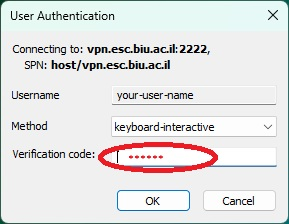
Double-click the desktop shortcut saved in step 5. The application opens a window requesting a six-digit verification code. Find the code in Microsoft Authenticator.
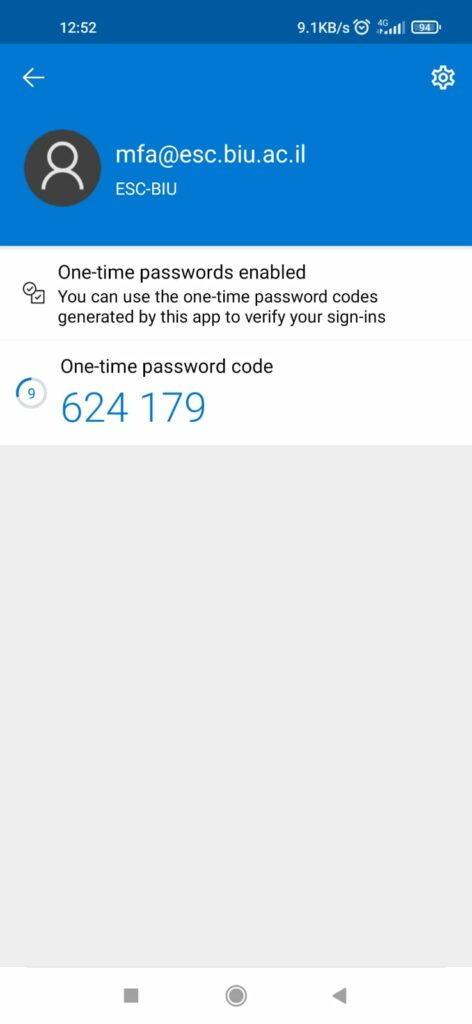
Enter the code in the prompt to connect.