

With many people working from home, here is an easy way to connect remotely to your personal computer in the laboratory or office. This is particularly useful if the laboratory computer is connected to measuring equipment or runs specialist software that cannot be installed at home.
Perform all the following steps on the computer you want to access remotely (the office or laboratory computer).
Power settings
The computer must remain switched on to accept remote connections.
- Open Power & Sleep Settings using search or Control Panel.
- Select Power & Sleep.
- Under Screen, select Never.
- Under Sleep, select Never.

Allow your user account to connect remotely
- Right-click This PC.
- Select Properties, at the bottom of the menu.
- Select Remote Settings in the left column.
- Open the Remote tab.
- Select Allow Remote Connections….
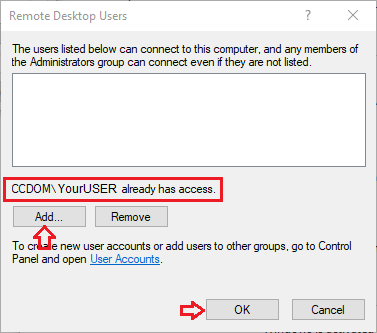
- Click Select Users.
- Add your computer user account to the allowed users. If your account is already included, no change is needed (see the small screenshot).
- Confirm all dialogs with OK.

We recommend testing that the computer accepts remote connections: from a nearby office or laboratory computer, try connecting with Remote Desktop, which is available on Windows computers.