

On this page
This guide is for Computer Science and Mathematics students and staff connecting to departmental servers.
It does not cover researchers’ servers (such as NLP) or DSAI servers. Use the university VPN for those, following the instructions emailed to you.
Before continuing, complete the VPN and authentication setup. If needed, consult common Linux connection problems.
Preparing the software and account
Linux servers are accessed using SSH. On Windows, the recommended client is MobaXterm. Alternatives include Bitvise and PuTTY.
Install an authenticator for MFA as explained in the VPN guide.
Create an SSH session to planet.cs.biu.ac.il. Use the university username listed under ESC in Inbar’s user codes, together with your university password. The username usually contains 7–8 letters, possibly followed by a digit.
Do not include the domain in your username: it contains letters and digits only, without @ or anything after it.
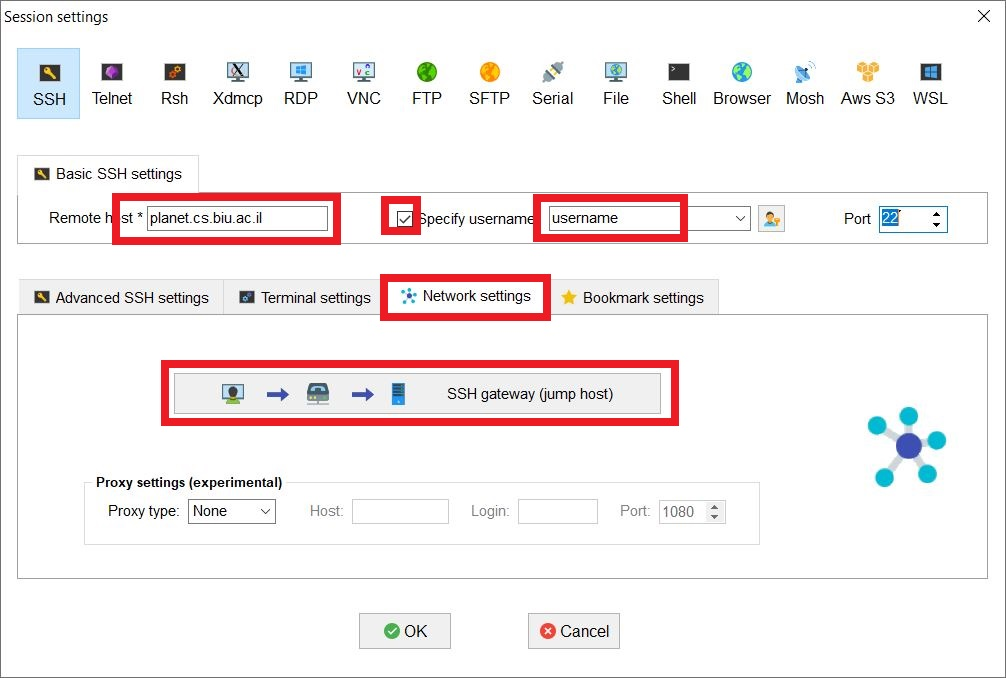
Planet runs a system version compatible with the assignment submission server. We recommend testing your assignment there before submitting it. Connections from outside the university must go through a gateway, as with other servers.
Which computer should I use?
Students developing or testing assignments should use planet.
Members of the DSI group should connect to dsihead.lnx.biu.ac.il, using their dedicated DSI account rather than their university username.
Connecting through a gateway
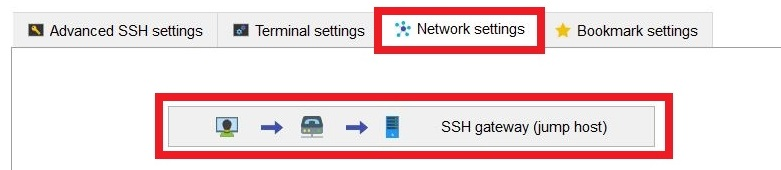
In the session’s Network settings tab, enable the gateway option and enter:
- Gateway host:
vpn.esc.biu.ac.il - Username: your university account, as described above
- Port:
2222
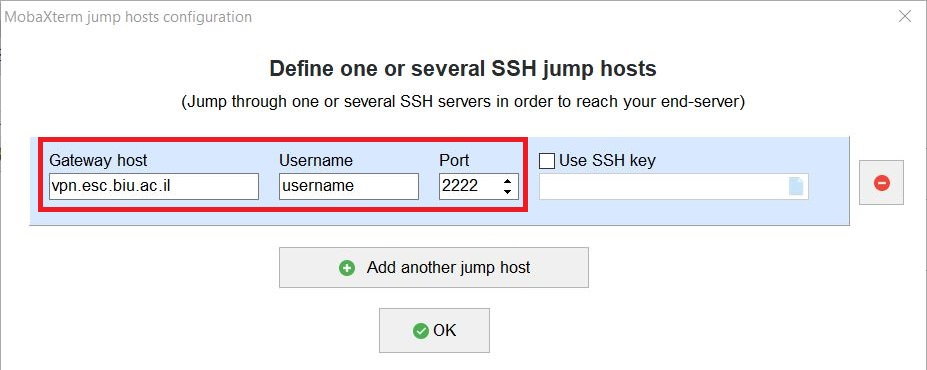
When prompted for a password, enter your university password. When prompted for a verification code, enter the authenticator code, which changes every 30 seconds. You may be asked for your password twice.
Preventing automatic disconnection
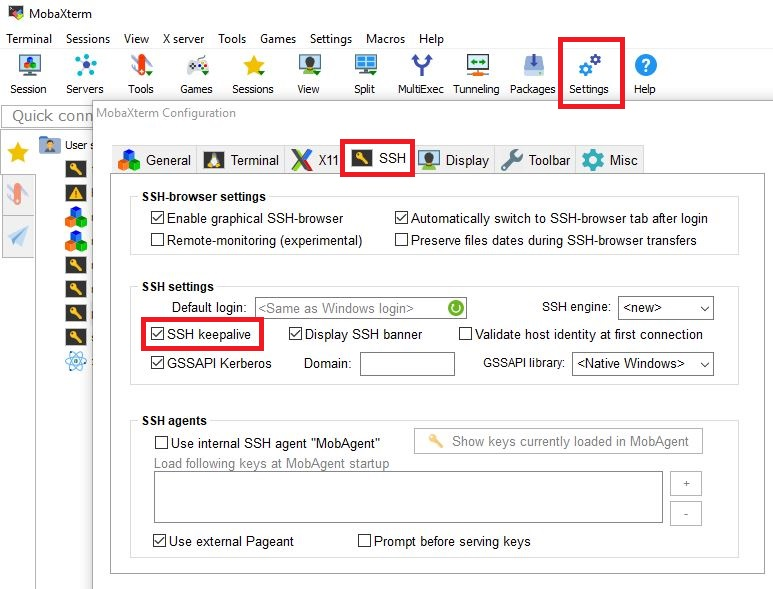
An idle connection may disconnect after a while. Configure the keep-alive setting shown below to prevent this.
Still unable to connect? See common Linux connection problems.
Signing in
Click the session name in the side panel. Initially, you may be prompted for:
- Your password for
vpn.esc.biu.ac.il: enter your Inbar/university password. - A verification code: enter the current one-time code from your authenticator app.
- Your password again, if the following prompt appears.

Nothing is displayed while you type a password, including asterisks. This is normal. Press Enter when finished.
MobaXterm can save passwords with your permission. These are protected by a local master password. When saving a password for the first time, you will be asked to create this master password. Enter it once when starting MobaXterm.
Troubleshooting Linux connections with MobaXterm
This guide is for Computer Science and Mathematics students and staff.
I cannot sign in to the server
Check your username and password. Your ESC username is listed in Inbar; use the Inbar password shared by university systems.
Repeated failed sign-ins block connections from the same source for a few minutes (Network error: connection timeout). This security measure helps prevent account break-ins.
Old processes may remain running on the server. Each user has a process limit; exceeding it can prevent sign-in (Server refused to start shell/command). Ask support for help.
To prevent this:
- Inspect your processes periodically with
ps -u $USER. - End unwanted processes individually with
kill, or all your processes withpkill -u $USER. - If unwanted processes remain after checking again, use
pkill -KILL -u $USERor target a specific process withkill -KILL processid.
- Inspect your processes periodically with
I am repeatedly asked for a password and verification code
- Codes change every 30 seconds. A code already used cannot be reused. Wait for a new authenticator code before trying again.
- Make sure the device running the authenticator has the correct date, time, time zone, and daylight-saving settings. Automatic settings are preferable.
- Use the faculty authenticator account, normally labelled mfa@esc.biu.ac.il. Do not confuse it with the university account, if you have one.
- Check your password by signing in to Inbar.
- For password or password for vpn.esc.biu.ac.il, enter your Inbar password. For verification code, enter the authenticator code. Do not swap them.
- MobaXterm may be using an expired saved password. Open Settings → General → MobaXterm password management and delete the outdated password, or all saved passwords. After entering the correct passwords next time, save them only on a personal computer that you alone use.
- Older MobaXterm versions have caused connection problems. Open Help → Check for updates.
File copying stops at 0%
This can happen when the filename or a containing directory uses Hebrew, particularly if the Windows username is Hebrew. The vendor fixed the reported bug in a preview version, which is not the official release. You can choose to install it or use another SSH client.
No response: timeout
- This indicates a communication problem. A server or university network fault should be handled centrally, but the cause may also be your computer or local network. Check those as well.
- Outside the university, or on wireless networking, check that your session has an SSH gateway (jump host) configured.
“Access denied” and another password prompt
Your university password may have changed while MobaXterm still has the old password saved. Enter your current password and press Enter.
Nothing appears when I type a password
This is normal in a session window. Password characters are not displayed. Press Enter after typing the password.