

On this page
Register for free access to SOLIDWORKS Design Standard for Students, install it on your computer, and activate a personal learning licence.
Before installing
- SOLIDWORKS 2026 requires 64-bit Windows 11. Windows Home editions are unsupported.
- Allow at least 16GB RAM; 32GB and an SSD are recommended. Check the current system requirements.
- Have administrator access, an internet connection, and sufficient free disk space ready.
Register and download
1. Enter your details
Supply an active email address, Bar-Ilan University as your institution, your country, education level, and field of study. Replace the example details shown below with your own.

2. Review the conditions
Read the eligibility, educational-use, licensing, and age declarations. Confirm only statements that apply to you and terms you accept, then continue.

3. Keep your licence details
Privately save the serial number on the download screen and download the installer. Licence and installation details also arrive by email. The download screen specifies 365 days from activation; verify your actual expiry date afterward.

Install on your computer
4. Start setup
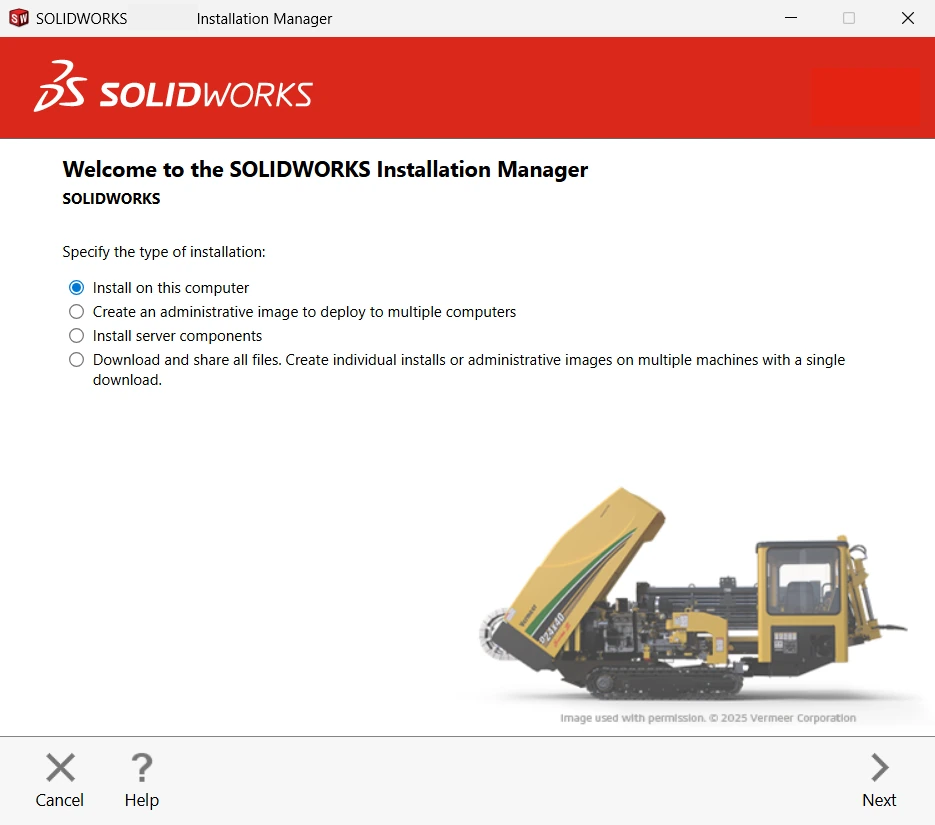
Open SolidWorksSetup.exe, extract its files, and choose installation on this computer. Continue to the next screen.
5. Supply the serial number
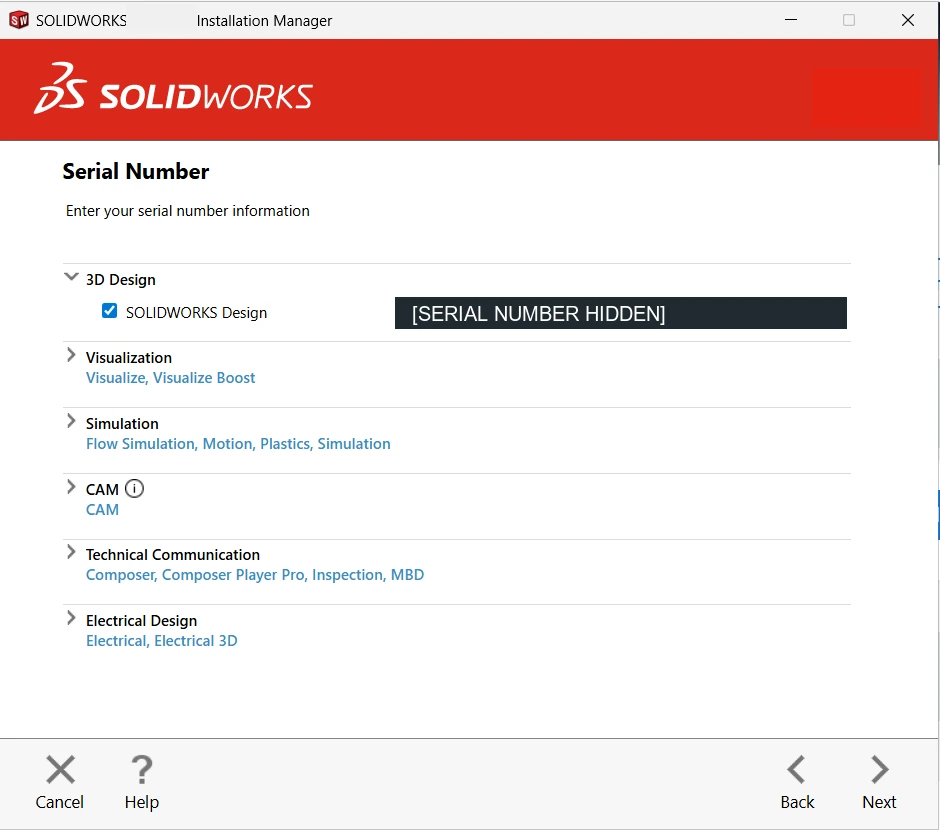
Enter it under 3D Design → SOLIDWORKS Design. Leave other product fields empty and continue to the system check.
6. Review and install
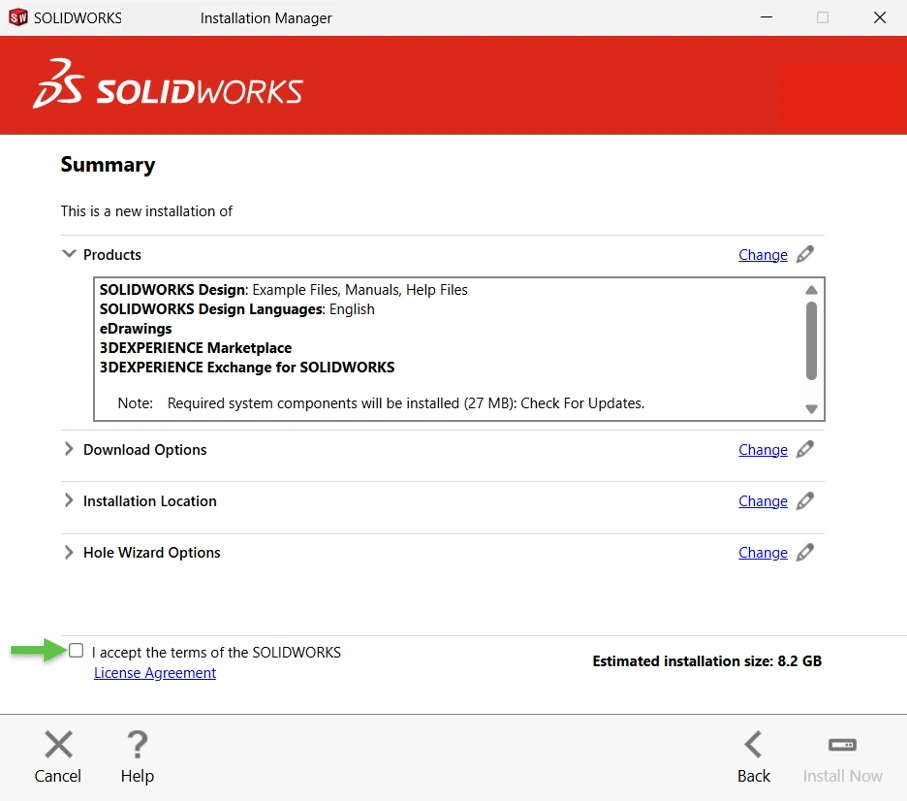
Check the products, destination, and required space. Read and accept the agreement before starting installation.
7. Finish setup
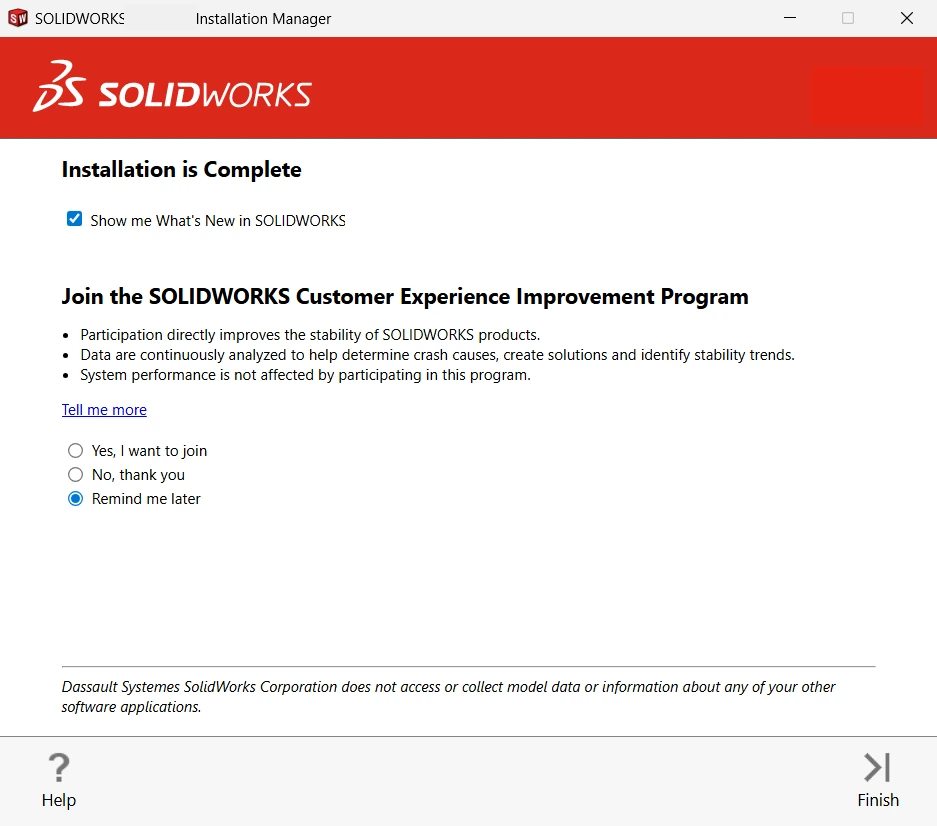
Choose your sharing and update preferences, finish installation, and launch the application. Restart if requested.
Activate the licence
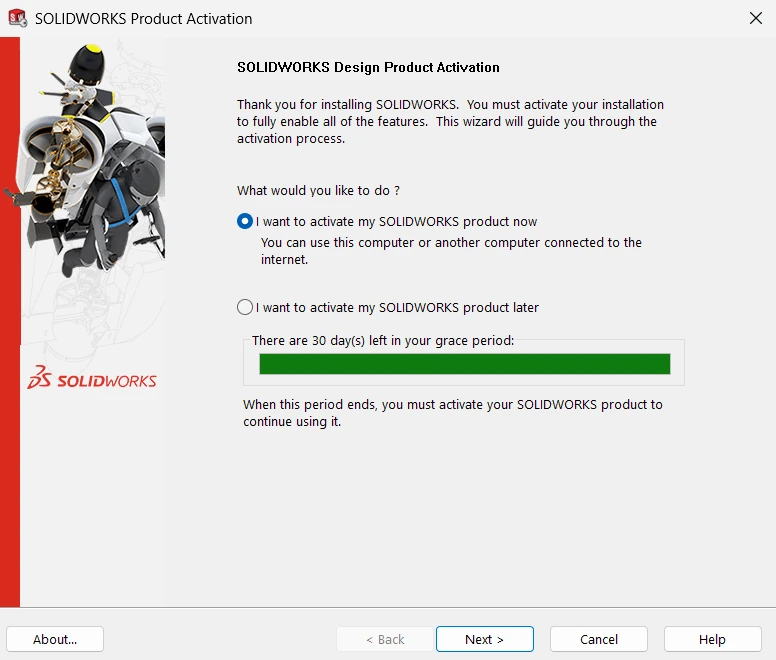
8. Open activation
At first launch, choose to activate the product now and continue.
9. Activate online
Select the product, choose automatic activation over the internet, enter your email address, and proceed.

10. Check the result
Confirm that activation succeeded and check the Expires column before closing the wizard.

Help and sources
For registration or installation problems, start with the SOLIDWORKS student FAQs. You can also contact our support team for local assistance.
This article and its screenshots are adapted from the Physics Department guide in Hebrew. Installation details were checked against the official SOLIDWORKS guide.